How to Resize Your Photo and Signature for Government Exam Forms
Step-by-step help to meet the KB, pixel and format limits that SSC, UPSC, bank and railway forms ask for.
By DocConvertPRO Editorial Team3 min read
Every year thousands of applicants have an online form rejected for a simple reason: the photo is 210 KB when the limit is 50 KB, or the signature is the wrong shape. This guide explains what the rules usually mean and how to meet them without guessing.
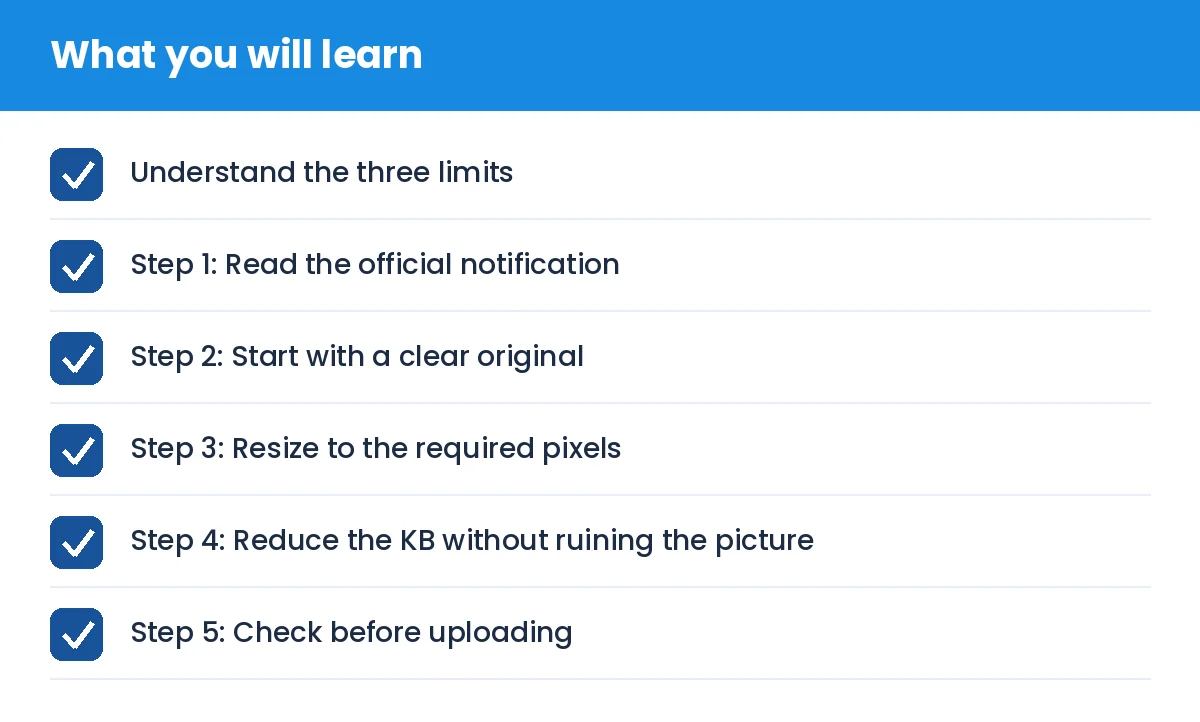
How to Resize Your Photo and Signature for Government Exam Forms: what you will learn
Understand the three limits
Most exam portals ask for three things at once:
File size, for example 20 KB to 50 KB. This is the size on disk, not the picture size.
Dimensions in pixels, for example 100 x 120 for a passport-style photo or 140 x 60 for a signature.
Format, almost always JPG or JPEG.
Meeting only one of them is not enough. A photo can be exactly 100 x 120 pixels and still be 80 KB, and the portal will reject it.
Step 1: Read the official notification
Photo and signature rules change between exams and between years. Open the latest notification or the upload page itself and note the exact minimum and maximum KB, the pixel size and the background colour. Do not rely on an old blog post, including this one, for the numbers.
Step 2: Start with a clear original
Take the photo in daylight, against a plain light wall, with your face centred and no shadows. A sharp original compresses better than a blurry one. For the signature, sign with a dark pen on plain white paper and photograph it straight on, then crop close to the ink.
Step 3: Resize to the required pixels
Use a photo resizer that lets you set width and height. Crop first so the face fills the frame, then scale to the required size. Stretching a wide picture into a tall frame makes the face look distorted, and some portals reject such photos.
Step 4: Reduce the KB without ruining the picture
JPEG quality controls file size. A good tool tries different quality levels and keeps the highest one that fits your limit. If the file is below the minimum size, a tool can add harmless padding so it passes the lower bound too. Aim for the middle of the allowed range, not the very edge, so a small difference in how the portal measures size does not fail you.
Step 5: Check before uploading
Is the size inside the KB range?
Are the pixels exactly as asked?
Is the extension .jpg or .jpeg?
Can you still recognise the face and read the signature when zoomed in?
Common mistakes
Renaming a PNG to .jpg without converting it.
Uploading the photo in the signature slot.
Using a photo with a cap, sunglasses or a dark background when the notice forbids it.
Waiting until the last day, when portals are slow.
Privacy
Our photo tools run in your browser, so the image is processed on your own device and is not uploaded to our servers. Keep your originals safe and delete edited copies you no longer need.
Always confirm the final specification in the official notification before you submit your application.