Product listings, profile pictures and ID photos all look better on a clean background. Here is how to get a good cut-out.
By DocConvertPRO Editorial Team3 min read
A cluttered background can ruin a good photo. A product shot taken on your bedsheet, a profile picture with a messy shelf behind it, a passport photo with a patterned wall: all of these get better when the background is removed and replaced with something clean.
How it works
Background removal uses an image model that guesses which pixels belong to the main subject and which belong to everything else. It then makes the background transparent. The result is saved as a PNG, which supports transparency, so you can place the subject on any colour or picture.
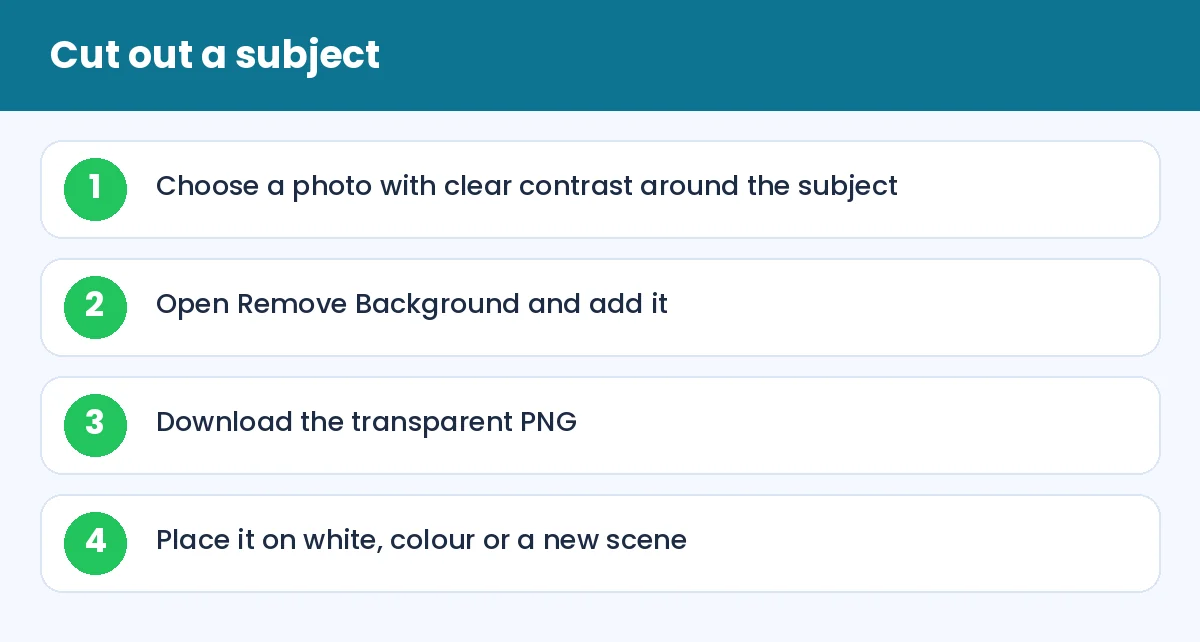
How to Remove the Background From a Photo Online: Cut out a subject (infographic)
Step by step
Open Remove Background, choose your photo and wait a few seconds. Download the transparent PNG. If you need a white background for a form or a marketplace listing, place the PNG on a white canvas in any simple editor, or export it with a white fill.
Picking a photo that works well
The quality of the result depends mostly on the source photo:
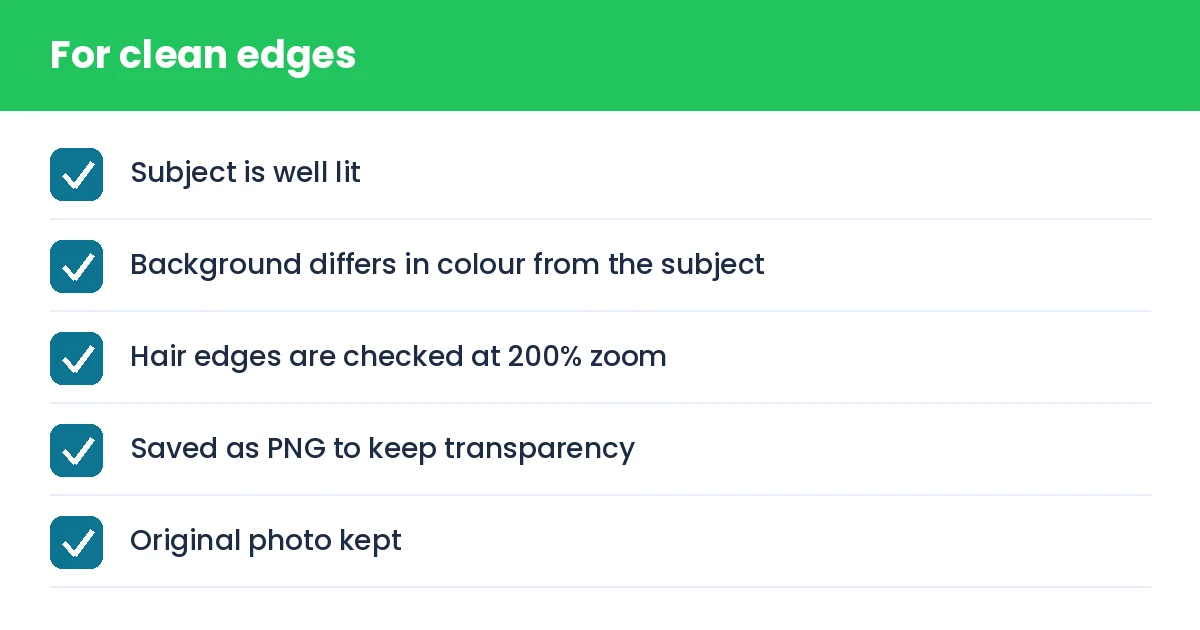
Good light. Even light on the subject helps the tool find the edge.
Contrast. A dark subject on a light wall is easier than a beige jacket on a beige sofa.
Sharp focus. Blurry edges produce a fuzzy cut-out.
Space around the subject. Do not crop right at the edge of hair or hands.
Fine details: hair and glass
Wispy hair, fur and transparent objects like glasses are the hardest cases. After removal, zoom in to 200% and look at the edges. If a halo of old background colour remains, place the cut-out on a background close to the original colour, or retake the photo with a plain wall behind.
Uses that actually save money
Online selling. Clean product images on white look more trustworthy on marketplaces and Instagram shops.
Profile and LinkedIn pictures. A plain colour background makes a casual photo look professional.
Presentations and posters. A transparent subject can be layered over any design.
Documents. Where the rules allow a plain background, the cut-out can be placed on white. Check the rules for the specific form first, because some authorities do not accept edited photos.
Note: official identity photographs often must not be digitally altered. Use this for your own designs and listings, and follow the issuing authority's rules for IDs.
How to Remove the Background From a Photo Online: For clean edges (checklist)
Size and format
PNG files with transparency can be large. If you need a smaller file for the web, use Compress image or Resize image after you are happy with the cut-out.
Summary
Choose a well-lit photo with contrast, remove the background, check the edges and save as PNG. You will get a clean result in less time than it takes to make tea.