How to Organize Bank Transactions in Excel or CSV – Free Guide
Learn how to organize your own bank transaction data in Excel or CSV, clean messy records, sort transactions and prepare a useful personal finance dataset.
By DocConvertPRO Editorial Team3 min read
Managing transaction data becomes much easier when your records are clean, consistent and easy to search. If you have your own transaction data in Excel or CSV format, you can organize it into useful columns and prepare it for budgeting, reconciliation or analysis.
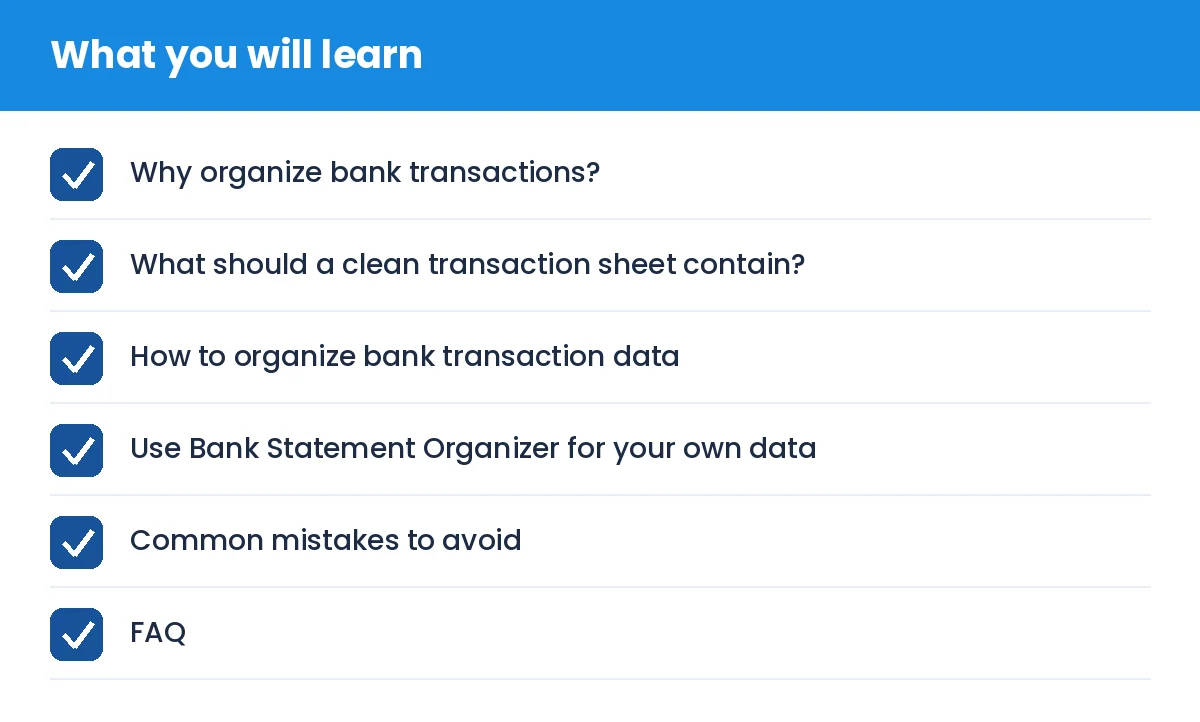
How to Organize Bank Transactions in Excel or CSV – Free Guide: what you will learn
DocConvertPRO's Bank Statement Organizer is designed for working with your own transaction data. It helps you structure and organize spreadsheet-based records without attempting to recreate or alter an official bank statement.
Why organize bank transactions?
Unorganized transaction files can contain inconsistent dates, descriptions, debit and credit values, blank rows or duplicate-looking entries. A clean dataset makes it easier to:
review spending
group transactions
prepare personal budgets
reconcile records
filter transactions by date or amount
analyze income and expenses
What should a clean transaction sheet contain?
A practical transaction sheet can include columns such as:
Date
Description
Reference or transaction ID
Debit
Credit
Balance
Category
Notes
The exact columns depend on the data you exported from your bank or financial application.
How to organize bank transaction data
Step 1: Start with your original Excel or CSV file
Use a copy of your own transaction data so your original export remains unchanged.
Step 2: Keep one transaction per row
Each transaction should normally occupy one row. Avoid combining several transactions into one cell.
Step 3: Standardize dates
Use one consistent date format throughout the sheet. Consistent dates make sorting and filtering much easier.
Step 4: Separate debit and credit values
If your data contains mixed positive and negative values, decide on a consistent structure before analyzing it.
Step 5: Clean descriptions
Remove unnecessary spacing and obvious formatting inconsistencies while keeping the transaction meaning intact.
Step 6: Add categories if useful
You can add categories such as groceries, utilities, travel, salary or subscriptions for your own analysis.
Use Bank Statement Organizer for your own data
If you already have transaction data in CSV or XLSX format, Bank Statement Organizer can help you work with that dataset more efficiently.
It is intended for legitimate organization and analysis of your own records. It should not be used to fabricate, modify or recreate an official bank statement.
Common mistakes to avoid
Editing the original export instead of a copy
Mixing date formats
Putting multiple transactions into one row
Leaving important columns inconsistently formatted
Removing transaction references that you may need later
Treating an organized spreadsheet as an official bank document
FAQ
Can I organize bank transactions in Excel?
Yes. Excel is useful for sorting, filtering, categorizing and analyzing your own transaction data.
Can I organize CSV bank transaction data?
Yes. CSV files can be opened in spreadsheet applications and organized into structured columns.
Is Bank Statement Organizer for creating fake bank statements?
No. It is intended for organizing and analyzing your own transaction data, not for fabricating or altering official financial documents.
Conclusion
Clean transaction data is easier to understand, search and analyze. Start with your own Excel or CSV export, keep a backup of the original file and organize the data into consistent columns.
You can also explore the free tools available on https://docconvertpro.co/ to work with your documents and spreadsheets.