How to Convert PNG to PDF (Screenshots, Graphics and Scans)
PNG keeps text and lines sharp. Here is how to turn PNG files into a clean PDF without bloating the size.
By DocConvertPRO Editorial Team3 min read
PNG is the format of screenshots, diagrams, logos and exported graphics. It is lossless, so text and lines stay crisp, which makes it a good source for a PDF. The only downside is size: PNG files of photographs and full-screen captures can be very large.
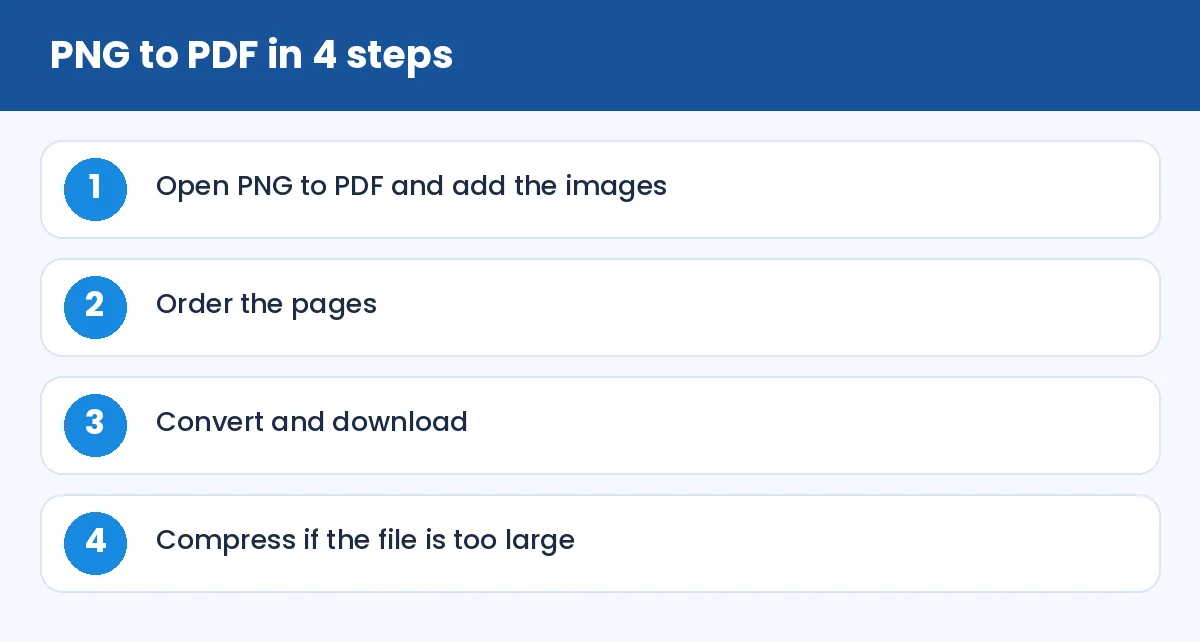
How to Convert PNG to PDF (Screenshots, Graphics and Scans): PNG to PDF in 4 steps (infographic)
How to convert
Open PNG to PDF, add your files, arrange the order and convert. Each PNG becomes one page. Download the PDF and scroll through it.
When to use PNG instead of JPG
Use PNG for screenshots, charts, text-heavy images and anything with sharp edges. Use JPG for photographs of people, places or paper documents, where the file size is much smaller. If a PNG is actually a photo, converting it with JPG to PDF after saving it as JPG will usually give a lighter file.
Transparency
PNGs can have transparent backgrounds. When placed on a PDF page, transparent areas normally appear white. If your design relies on a coloured background, check the result carefully. If you made the PNG with Remove Background, expect white behind the subject.
Keep file size under control
A single full-screen PNG can be 1 to 3 MB. A twenty-page PDF built from such images becomes heavy. After converting, use Compress PDF. If a portal has a strict size limit, try the dedicated pages such as compress PDF to 500 KB or to 1 MB.
Practical uses
Turning a series of screenshots into a bug report or a how-to document
Sending a design for approval as one tidy file
Submitting a certificate that you only have as an image
Printing several images on separate pages
Tips
Crop first. Remove browser bars and empty margins with Crop image so the PDF page shows only what matters.
Check the orientation. Landscape screenshots may need rotating on the page. Use Rotate PDF to fix any that come out sideways.
Keep names clear. Number the files before adding so the order is predictable.
Tip: if text in a screenshot is hard to read after conversion, take the screenshot again on a larger zoom level and avoid scaling it down.
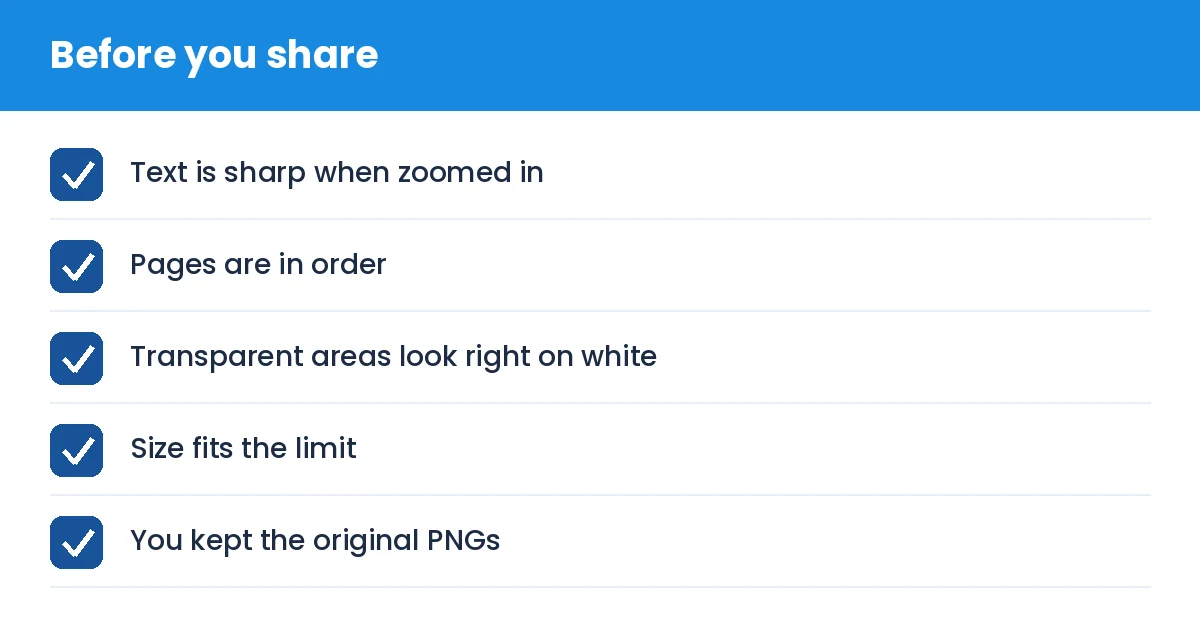
How to Convert PNG to PDF (Screenshots, Graphics and Scans): Before you share (checklist)
Summary
PNG gives you sharp pages, and a PDF gives you a single shareable file. Convert, check, compress if needed and you are done.